Mastering Data Reconciliation: The Ultimate Comparison Guide
In the data-driven world of 2026, accuracy is paramount. Whether you are a financial auditor reconciling ledgers, an e-commerce manager updating product SKUs, or a developer migrating databases, knowing exactly what changed between two datasets is critical. Manual comparison of thousands of rows in Excel is not only tedious but prone to human error.
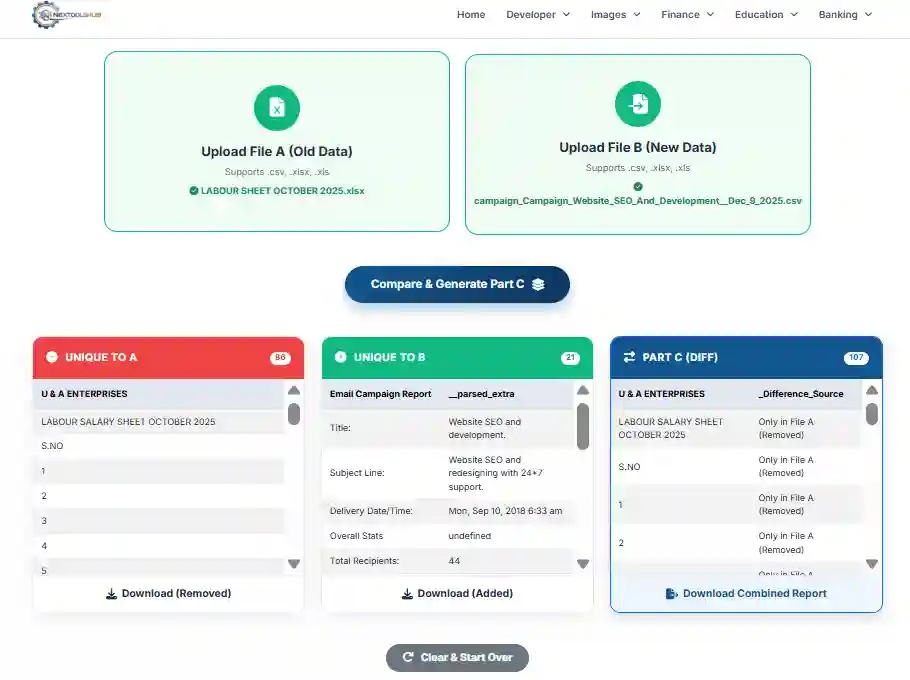
NexToolshub's Data Comparator automates this entire process. By uploading an "Old Version" (File A) and a "New Version" (File B), our algorithmic engine instantly segregates data into three logical buckets: what was removed, what was added, and a combined difference report.
How This Tool Logic Works
This tool treats your files as sets of data and performs the following operations:
1. Unique to A
Rows present in File A but missing in File B. Represents Deletions.
2. Unique to B
Rows present in File B but missing in File A. Represents Additions.
3. Part C (Combined)
A merged file containing both sets of differences for a complete audit trail.
Why Generate "Part C"?
Standard Excel functions like VLOOKUP can tell you if a value exists, but they struggle to show you the whole picture. Part C is essential for:
- Audit Trails: Providing a single document to compliance teams showing all net changes in a reporting period.
- Inventory Management: Quickly identifying which products were discontinued (Unique A) and which were launched (Unique B) in one view.
- Migration Checking: Verify that data transfer didn't lose or incorrectly add records.
Best Practices for Clean Data
To ensure 100% accuracy in your comparison results:
- Consistent Headers: Ensure both files have the same column names and order.
- Data Formatting: Watch out for hidden spaces (e.g., " John" vs "John"). Our tool treats these as different values.
- Date Formats: Ensure dates are formatted identically (DD/MM/YYYY vs MM/DD/YYYY) in both files to prevent false positives.
Frequently Asked Questions (FAQ)
Common questions about file comparison.